Sales tax fields on a receipt: rate, amount, exempt lines, and totals
How to show sales tax or VAT fields on customer receipts without drifting away from the actual sale record.
What this guide covers
- Tax fields should match the transaction, not a later estimate.
- Show rate and amount when tax was collected.
- Use accurate labels for exempt or non-taxable lines.
Table of contents
Use the sale record as the source of truth
Tax treatment depends on where you sell, what you sell, who you sell to, and how your business is registered. A receipt maker cannot decide those facts for you.
Before you add tax or VAT fields, check the payment record, invoice, POS export, accounting entry, or platform transaction that shows what was actually collected.
When tax was collected, show it clearly
If your sale collected sales tax or VAT, the customer receipt should make the total easy to understand. Show the taxable subtotal, rate, tax amount, and final amount paid when those fields apply.
This helps the customer read the receipt and helps your own team reconcile the payment later.
| Receipt line | Example |
|---|---|
| Taxable subtotal | $125.00 |
| Sales tax rate | 8.25% |
| Sales tax amount | $10.31 |
| Amount paid | $135.31 |
Label exempt or non-taxable lines carefully
If a line is exempt, non-taxable, or outside the scope of tax for your sale, label it plainly. Do not hide the line or add a tax amount that was not collected.
For mixed receipts, separate taxable and non-taxable lines so the subtotal and tax amount still make sense.
Non-taxable service
Use a label such as non-taxable service when that matches your jurisdiction and records.
Exempt customer
Store the exemption record internally if your process requires it; do not put sensitive customer documents on the receipt.
Review before you reuse the template
Tax fields are easy to copy from one receipt to the next, which is exactly why they need a quick review. A reusable receipt template should save time without turning yesterday's tax treatment into today's mistake.
If you are unsure which tax fields apply, keep the receipt factual and ask an accountant or local tax authority before sending customer documents at scale.
Turn this guide into a receipt
Enter the sale details you control, review the fields, and export a customer PDF.
Open receipt maker
Receipt checklist before sending
- Tax fields match the underlying sale record.
- Taxable subtotal is clear.
- Rate and amount are shown when tax was collected.
- Exempt or non-taxable lines are labeled accurately.
- Total paid equals subtotal plus tax, less discounts or credits.
- Sensitive customer or card details are not exposed.
FAQ
Should every receipt show a sales tax rate?
No. Show a tax rate when tax was collected and the rate belongs on the customer receipt.
What if I forgot to add tax to the sale?
Do not invent tax on the receipt. Reconcile the underlying sale through your normal accounting process before issuing a corrected customer copy.
Can I show VAT instead of sales tax?
Yes, when VAT is the relevant tax field for your business and location. Use labels that match your records.
Get Receipt Team
Receipt documentation and seller workflow guides.
Get Receipt writes for businesses that need clear customer receipts tied to legitimate sales, services, deposits, and internal payment records.
Related articles
Deposit receipt template for service businesses: fields and workflow
6 min read · July 7, 2026
Paid service call receipt checklist: fields to review before sending
6 min read · July 7, 2026
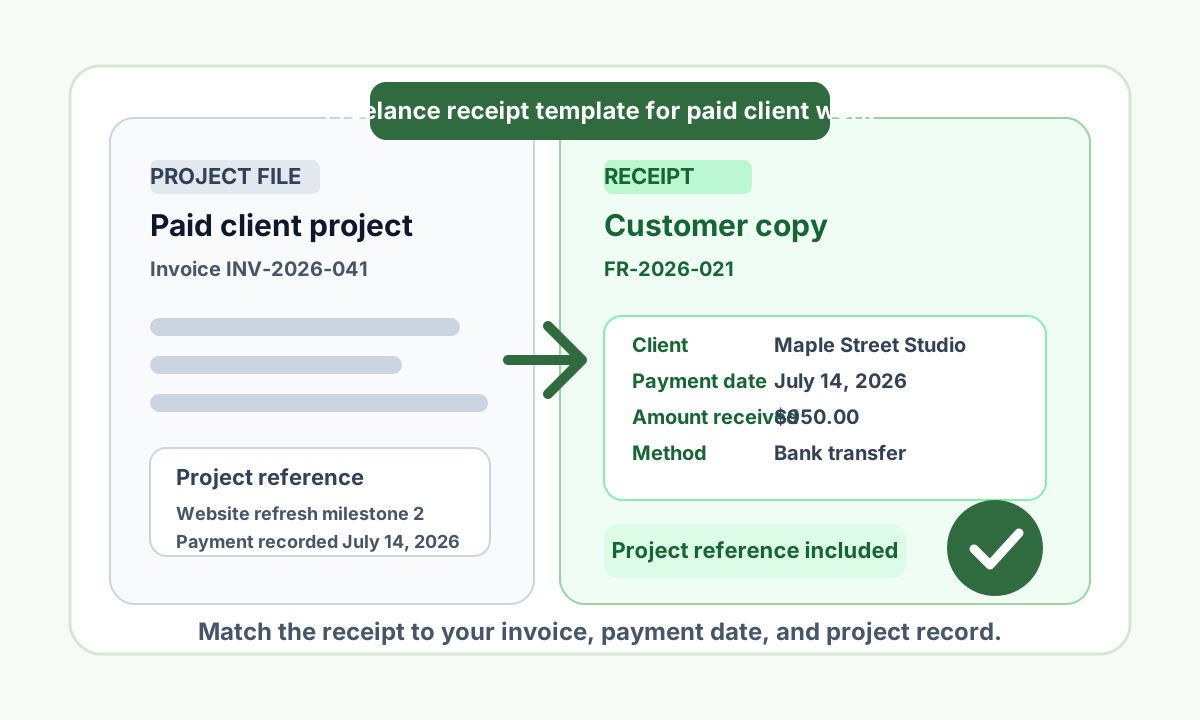
Freelance receipt template: what to include after client payment
7 min read · July 7, 2026